5 Hidden Features of the Optix MAG271CQR You Must Know About
Introduction
The Optix MAG271CQR sits in the crowded field of 27-inch QHD monitors aimed at gamers and general power users. On paper it reads like many competitors — a curved 2560×1440 panel, high refresh rate, and gamer-friendly styling — but a handful of under-the-radar features make it especially useful for people who split their time between competitive gaming, sim racing, creative work, and daily productivity. This article explores five “hidden” or easily overlooked capabilities of the MAG271CQR, explains why they matter in real-world use, and offers practical tips and settings recommended for buyers who care about picture quality, responsiveness, and ergonomics.
Overview: What buyers typically care about
When shoppers evaluate a mid-range gaming monitor like the MAG271CQR, the most common decision drivers are:
- Image quality: resolution, color reproduction, contrast, and HDR behavior for movies and creative work
- Responsiveness: refresh rate, input lag, motion clarity for competitive titles
- Comfort and ergonomics: curvature, stand adjustments, VESA compatibility
- Value features: on-screen tools, adaptive sync compatibility, OSD software
- Connectivity and compatibility: DisplayPort/HDMI inputs and console/PC behavior
Most of those things are visible in spec sheets. The five hidden features below are the practical, often buried elements that change how the monitor performs day to day.
Detailed analysis: 5 hidden features and how to use them
1. Gaming OSD extras: crosshair, timer, and FPS overlay (software + joystick)
One frequently missed capability is the built-in gaming OSD assists. Beyond color presets and response-time options, the MAG271CQR exposes small but useful on-screen tools: a crosshair overlay, an in-OSD timer, and an FPS counter. These are intended for competitive shooters and streamers who want simple HUD elements without relying on in-game overlays or third-party software.
Why it matters: A hardware crosshair is game-agnostic and can be especially helpful for retro or unsupported titles. The timer is useful for speedrunners or time-limited challenges, and an OSD FPS readout helps with quick performance checks without opening a benchmarking tool.
How to access and use it:
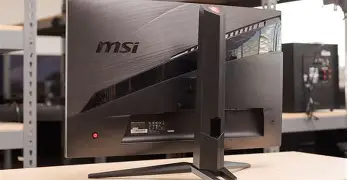
- Open the monitor OSD using the joystick/button on the back or underside.
- Navigate to the gaming submenu or utility submenu; enable the crosshair and choose its style.
- Use the Gaming OSD application on the PC (if available) for easier configuration and profile switching."""
2. Black Tuner / Night-vision-style shadow enhancement
The monitor includes a shadow/black-level enhancement feature often labeled as Black Tuner, Night Vision, or something similar in the OSD. This boosts detail in underexposed parts of the image without globally increasing brightness or washing out highlights.
Why it matters: In real-world play, many modern shooters and cinematic games rely on deep shadowing. A controlled boost to mid-to-low luminance levels makes enemies and objects in dark corners more visible while preserving the rest of the image. It is also handy for documentaries and cinematic scenes where shadow detail is important.
How to use it well:
- Enable the feature only when needed — overuse can make scenes look flat and reduce perceived contrast.
- Combine a moderate Black Tuner setting with an adaptive contrast or dynamic contrast off; this preserves highlight detail.
- For competitive FPS play, pair Black Tuner with a higher refresh rate and lower response-time setting for maximum advantage.
3. Tunable color modes and hardware-level presets for mixed workflows
Although not unique, the MAG271CQR’s collection of color modes and advanced RGB/gamma sliders is more powerful than casual shoppers expect. The monitor typically offers several factory presets (Standard, Game, Movie, sRGB) plus user modes where red/green/blue gains, gamma, and color temperature can be adjusted directly via the OSD. This makes the monitor perform well both as a gaming display and as a pragmatic tool for photo editing and color-aware tasks.
Find top-rated Electronics products at great prices.
Shop Amazon →Why it matters: Buyers who use one screen for both gaming and light creative work often compromise. The MAG271CQR lets users configure a near-sRGB mode for color work during the day, then switch back to an elevated saturation Game mode for night-time gaming. Being able to save custom profiles to the monitor or switch quickly via software preserves workflow continuity.
Calibration tips:
- Start with the sRGB preset for color-critical tasks, then use a calibration device (colorimeter) if exact accuracy is required.
- For content creators who don’t have a colorimeter, reduce blue slightly and use the medium gamma preset for more neutral skin tones.
- Create and save separate profiles for web work, video grading, and gaming to avoid manual readjustment.
4. Variable Refresh Rate behavior and response-time tuning
The monitor supports variable refresh technologies to reduce tearing and stutter when frame rates fluctuate. A lesser-known but important detail is the interaction between VRR (variable refresh) and the monitor’s response-time / overdrive settings. Using too aggressive an overdrive with VRR enabled can produce inverse ghosting; conversely, conservative overdrive may leave a trailing blur at high frame rates.
Why it matters: Players sensitive to motion artifacts will notice different ghosting behavior depending on VRR state. Understanding and tuning the response-time/overdrive levels will provide the best compromise between low persistence motion clarity and minimal overshoot.
Practical tuning strategy:
- Enable Adaptive Sync (or equivalent) in the GPU control panel and in the monitor OSD.
- Test overdrive options at a range of framerates (e.g., 60–120 fps and 120–165 fps). If inverse ghosting appears as bright trails, reduce overdrive one step.
- When running capped framerates (e.g., 120 fps on a 165Hz panel), experiment with a mid-level overdrive setting; this often yields the best balance.
5. Curvature ergonomics that aid productivity and immersion
Curvature is sometimes dismissed as purely aesthetic. The MAG271CQR’s curve (commonly 1500R) is a subtle but practical tool: at normal desktop distances a moderate curve reduces the angular difference between the center and the edges of the screen, making it easier to take in multi-window layouts, spreadsheets, and wide timelines for video editing.
Why it matters in the real world: For productivity-heavy users who split the screen into vertical columns or use 3-up/4-up window layouts, the curve reduces the need for head turning. For simulators and immersive single-screen experiences, it slightly increases perceived field of view without requiring an ultrawide panel.
Ergonomic suggestions:
- Place the monitor so that the center aligns with the user’s eye height and sit about an arm’s length away — this maximizes the ergonomic benefit of the curvature.
- Use built-in stand tilt and height adjustments for comfortable vertical alignment; the curved panel is more forgiving with small vertical offsets but still benefits from proper ergonomic placement.
- For multi-monitor setups, match the curvature across screens where possible or use a central curved primary with flat secondaries for mixed workflows.
Practical real-world use cases
Understanding how these hidden features translate to everyday tasks helps buyers prioritize which capabilities matter.
- Competitive FPS players: The OSD crosshair and Black Tuner offer immediate advantages when accuracy and visibility matter. Pair these with tuned overdrive and VRR for consistent performance.
- Sim racers and flight sim pilots: The curvature increases immersion and peripheral visibility without stretching UI elements, while the high refresh rate keeps motion smooth. The on-screen overlays and timer are handy for lap timing.
- Content creators who also game: The comprehensive color modes mean the same monitor can be tuned for sRGB photo work during the day and a punchier gamut for gaming at night.
- Office and spreadsheet users: The curve and QHD resolution provide more usable vertical and horizontal space, reducing eye/head movement for broad spreadsheets and multi-document workflows.
Pros & Cons
- Pros
- High-resolution QHD panel with higher-than-60Hz refresh for responsive gaming and sharper desktop work
- Curved screen improves immersion and reduces head-turning in multi-window setups
- Multiple hidden OSD features (crosshair, timer, FPS) and robust color/user presets
- Good balance of contrast and deep blacks from the VA panel for movies and dark-game visibility
- Adaptive sync support that, when tuned, reduces tearing and judders
- Cons
- VA panel can show slower pixel response at some overdrive settings, requiring tuning for ghosting/overshoot
- Curved panel is less ideal for multi-monitor flat-wall setups or precise CAD work where flatness matters
- OSD navigation via joystick is convenient but menus can be nested and require time to learn
- Not designed as a color-critical reference monitor out of the box without calibration
Comparison table: How the MAG271CQR stacks up
| MAG271CQR | Typical 27" QHD IPS 144Hz | High-refresh 27" 240Hz TN-style | |
|---|---|---|---|
| Panel type | VA (curved) | IPS (flat) | Fast TN / Fast IPS (flat) |
| Contrast | High, deeper blacks | Moderate | Low to moderate |
| Color accuracy | Good with calibration | Best out of box for color work | Variable; often needs tuning |
| Motion/Refresh | Up to high refresh (e.g., 165Hz), good balance | Solid 144Hz for general gaming | Best for ultra-competitive fast twitch gaming |
| Ergonomics | Curved enhances immersion and productivity | Flat, versatile for multi-monitor | Flat, optimized for speed |
| Best for | Mixed use: gaming + media + productivity | Creators who also game | Competitive esports players |
Buying guide: What to check before choosing the MAG271CQR
When considering the MAG271CQR or a similar curved QHD gaming monitor, buyers should weigh these practical checkpoints to ensure the display matches use-case priorities:
Discover deals on Electronics — updated daily.
View Offers →1. Panel type and intended use
If prioritizing deep contrast for movies and darker games, a VA curved panel can be advantageous. For color-critical photo and print work, prefer an IPS display with factory color calibration unless one plans to calibrate with a colorimeter.
2. Refresh rate and frame pacing
Decide whether 144–165Hz is sufficient, or if the use-case favors extreme refresh rates for esports. Remember that higher monitor refresh must be paired with a capable GPU and appropriate settings for max benefit.
3. Variable refresh and GPU compatibility
Confirm adaptive sync support and how it interacts with the buyer’s GPU. For mixed GPU ecosystems, test VRR in both AMD and NVIDIA environments if possible, or ensure the vendor’s documentation about G-Sync compatibility is clear.
4. Ergonomics and mounting
Check the stand’s range of height, tilt, and swivel. For desk setups with VESA mounts, verify the VESA pattern and recommend a flexible monitor arm for precise alignment with the curve for multi-window productivity.
5. Inputs and connectivity
Ensure sufficient DisplayPort and HDMI connections for multi-source use (PC, console, capture devices). If the buyer uses a laptop, confirm the availability of DisplayPort over USB-C or plan for docked solutions.
6. On-screen features and software
Look for a useful OSD and vendor software that allows profile switching, and test the existence of utility features like crosshairs, timers, and black-level tuners if they are part of the buyer’s workflow.
7. Calibration and warranty
If using the monitor for color work, check the warranty period and whether the manufacturer provides any factory calibration report. For professionals, budgeting for a colorimeter is recommended.
Settings cheat-sheet: Recommended presets for common tasks
- General productivity: Standard or sRGB preset, brightness 120–180 cd/m², medium gamma, refresh at native 60–100Hz depending on battery/energy goals.
- Competitive gaming: Game preset, Black Tuner low–medium, adaptive sync on, overdrive mid/fast (tweak to avoid inverse ghosting), refresh at highest supported rate.
- Single-player cinematic games and movies: Movie preset, Black Tuner off or subtle, contrast slightly higher, adaptive sync on for lower frame rates.
- Photo editing (uncritical): sRGB preset, disable dynamic contrast and any motion-enhancing features, calibrate with a colorimeter if possible.
Conclusion
The Optix MAG271CQR is more than a spec sheet: its smaller, user-oriented features — on-screen crosshairs and timers, Black Tuner shadow enhancement, accessible color presets and RGB controls, nuanced VRR/overdrive interaction, and the ergonomics of a curved VA surface — are the parts that turn an all-purpose monitor into a flexible daily driver. For buyers who switch between competitive gaming, immersive single-player titles, content creation, and productivity, understanding and using these hidden features unlocks a better balance of image quality and responsiveness without requiring multiple specialist displays. With some time spent in the OSD and a few tuned profiles saved, the MAG271CQR can serve as a versatile primary monitor for a wide variety of real-world workflows.